.png?width=49&height=50&name=manifest-icon_black-1%20(2).png)
This article covers:
- The Staff Training snapshot on your Home page
- The My Staff page (List and Cards views)
- Filtering your staff list
- Viewing an individual staff member's progress
- Downloading the Staff Progress Report
- What's included in the report
- How "Learning Completed" is calculated
Who has access: Owners and Managers can view My Staff, open individual profiles, and download the Staff Progress Report.
Staff Training Snapshot
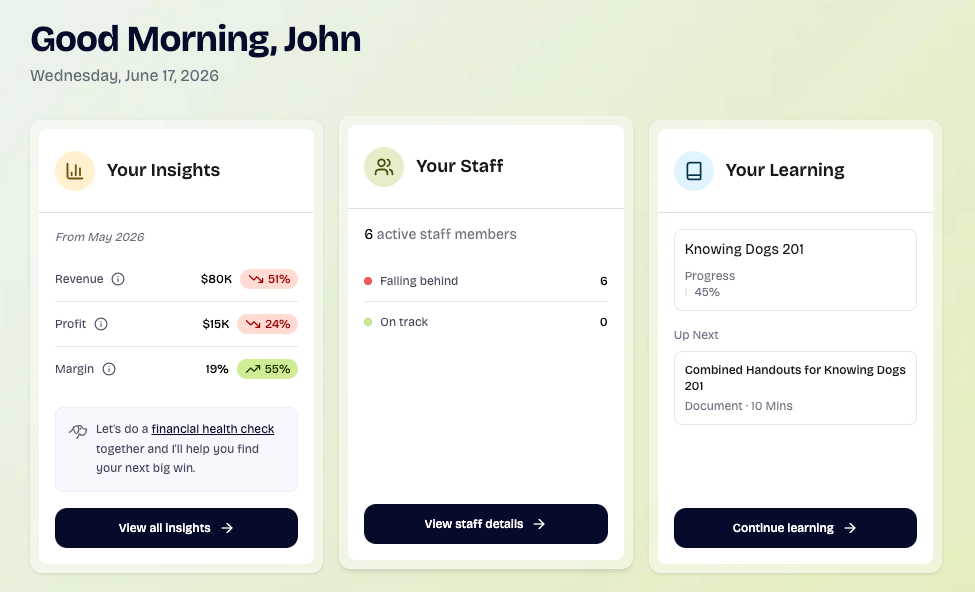
From your Home page, the Staff Training section gives you a high-level overview of where your team stands. Employees are grouped by learning status: Falling Behind, Due Soon, On Track, Completed.
Select View Details to jump straight to the My Staff page for the full breakdown.
The My Staff Page
The My Staff page lists everyone on your team and how far along they are in their training. You can switch between two layouts using the List / Cards toggle in the top-left of the toolbar.
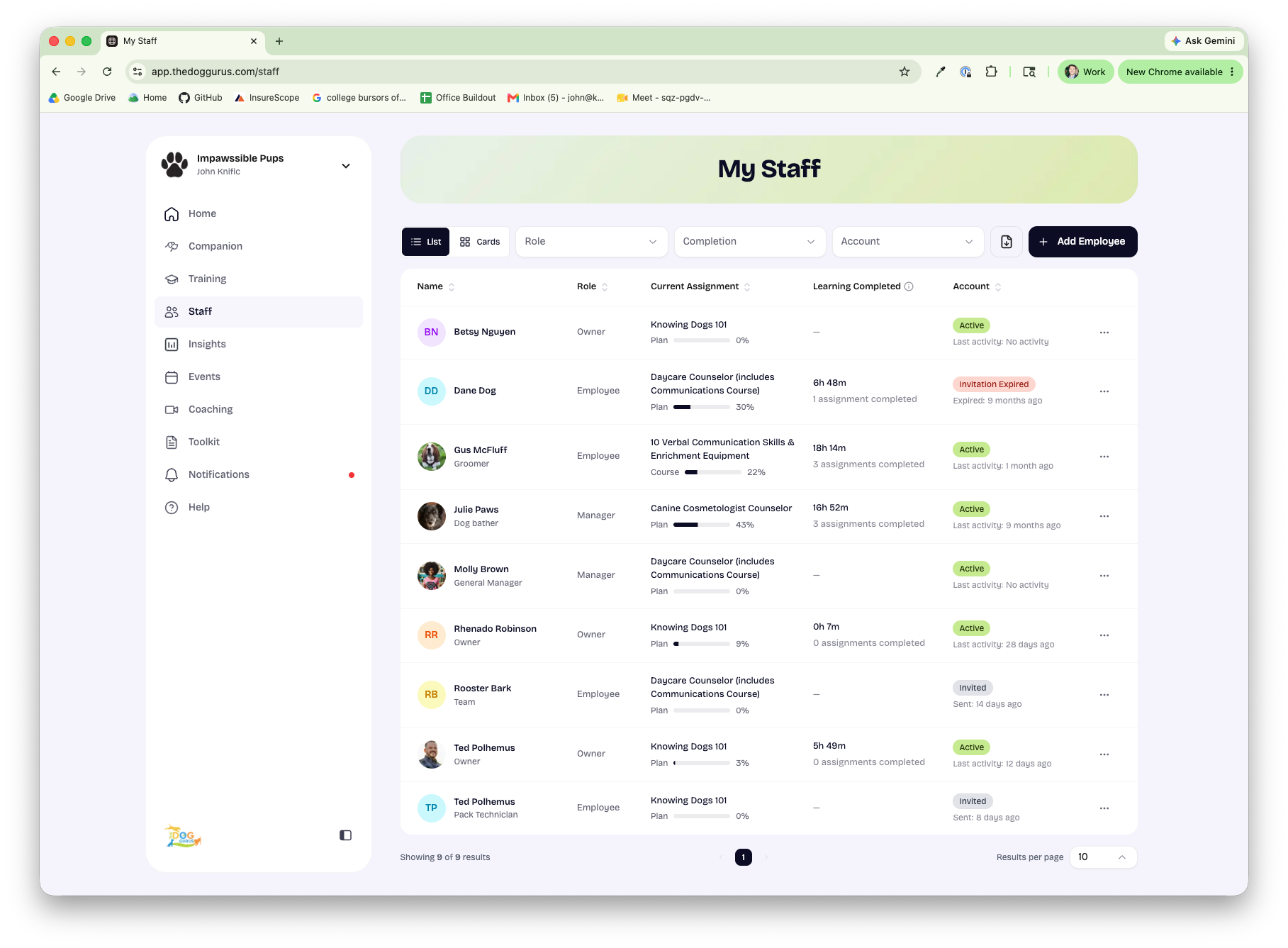
The My Staff page in List view (the default).
List view (default)
List view shows your team in a sortable table. Each row includes:
|
Column |
What it shows |
|
Name |
The staff member's name. Click it to open their profile. |
|
Role |
Their role — Employee, Manager, or Owner. |
|
Current Assignment |
The assignment they're actively working on, with a progress bar and percentage. |
|
Learning Completed |
Total learning time completed (for example, 9h 53m), plus a breakdown of completed assignments. |
|
Account |
Their account status (Active, Invited, and so on) with the time of their last activity or invitation. |
You can sort the table by Name, Role, Current Assignment, or Account by clicking the column header. Use the rows-per-page control at the bottom to show 10, 25, 50, or 100 staff at a time.
Filtering your staff list
Three filters sit in the toolbar so you can narrow the list to exactly who you want to see. They work in both List and Cards views:
- Role — show only Employees, Managers, or Owners.
- Completion — filter by learning status: Falling Behind, Due Soon, On Track, or Completed.
- Account — filter by account status: Active, Invited, or Invitation Expired.
You can combine filters (for example, Employees who are Falling Behind). Your selections are kept in the page URL, so you can bookmark or share a filtered view.
Account statuses explained
|
Status |
What it means |
|
Active |
The staff member has accepted their invitation and is using the platform. The row also shows their Last activity time. |
|
Invited |
An invitation has been sent but not yet accepted. The row shows when it was Sent. |
|
Invitation Accepted |
The invitation was accepted but the account isn't fully active yet. |
|
Invitation Expired |
The invitation expired before it was accepted — resend it from the row's actions menu. |
|
Invitation Revoked |
The invitation was withdrawn. |
Viewing an individual staff member's progress
Click a staff member's name to open their profile, where you can see everything they've been assigned and how far they've gotten.
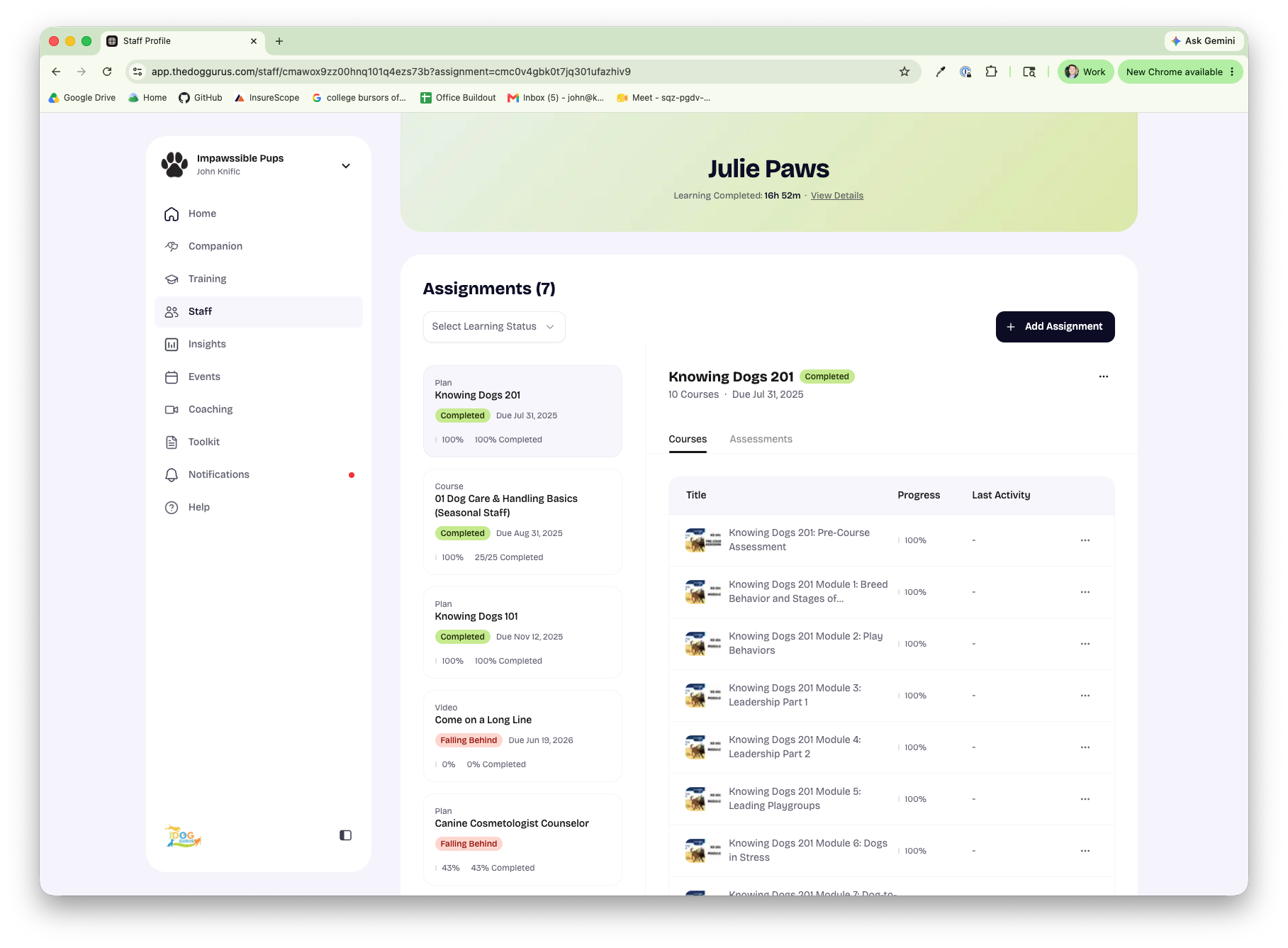
An individual staff profile, showing the Assignments list with per-course progress.
Learning Completed Summary
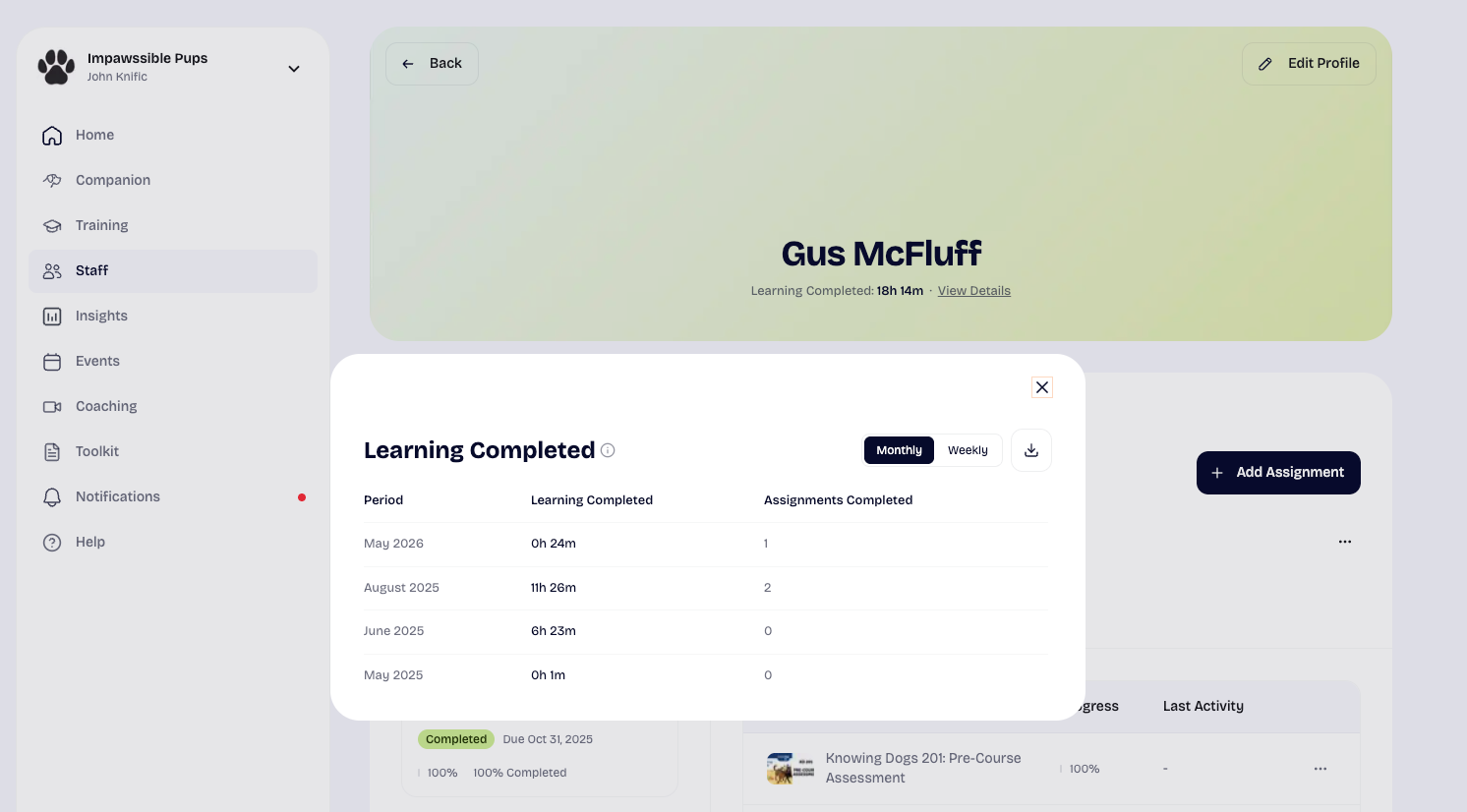
At the top of the profile, under the staff member's name, you'll see Learning Completed: [time] · View Details.
Select View Details to open a history of their completed learning over time. In that view you can:
- Toggle between a Monthly and Weekly breakdown.
- See Period, Learning Completed, and Assignments Completed for each row.
- Download the history as a CSV for that individual.
Assignments
The Assignments section lists every Plan, Course, and Item assigned to this person. Here you can:
- Use the status filter at the top to focus on assignments that are Falling Behind, Due Soon, On Track, or Completed.
- Select any assignment in the list to see its details on the right.
- Switch between the Courses (or Items) tab and the Assessments tab.
- Review each piece of content's Progress and Last Activity.
- Add new training with the Add Assignment button.
The details panel shows the assignment title, its type (Plan, Course, or Item), how much content it contains, and the due date if one is set.
Downloading the Staff Progress Report
The Staff Progress Report is a CSV export that captures each staff member's assignments, completions, and learning time — for your whole team or a filtered subset, across any date range. It's ideal for record-keeping, compliance reporting, or analyzing trends in a spreadsheet.
To download it:
- Go to the My Staff page.
- Click the export icon (the download button) in the top-right of the toolbar, next to Add Employee.
- In the Export Staff Progress Report window, choose your options (below).
- Click Export CSV.
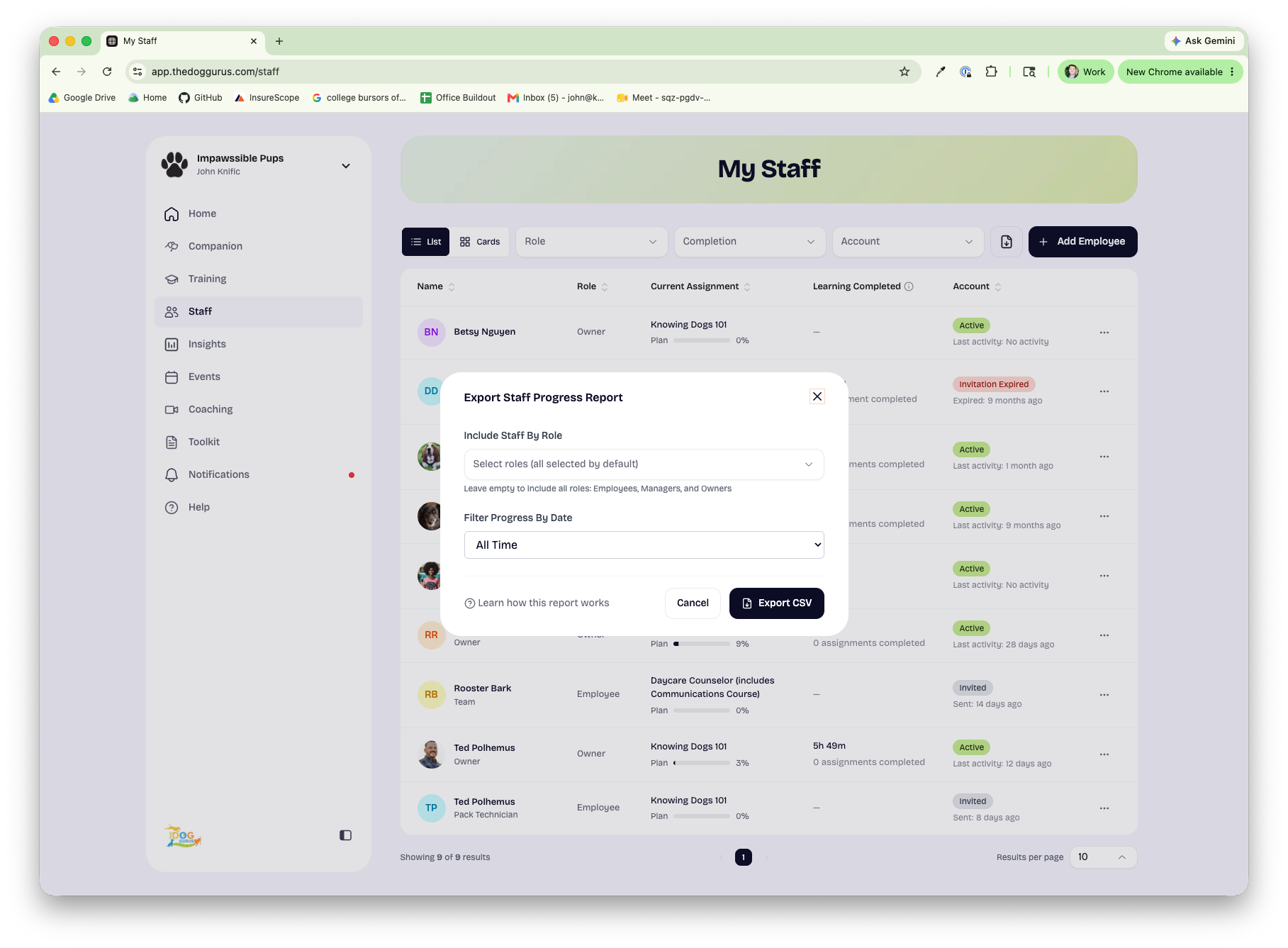
The Export Staff Progress Report window.
Export Options
Include Staff By Role Pick one or more roles to include. Leave it empty to include everyone — Employees, Managers, and Owners.
Filter Progress By Date Choose the date range the report should measure activity against:
- All Time (default)
- This Month
- Last Month
- Last 3 Months
- Last 6 Months
- This Year
- Custom Range — pick your own From and To dates
Note: The date range only affects the selected-period columns in the report (see below). The total columns always reflect lifetime activity, no matter which range you choose. When All Time is selected, the selected-period columns match the total columns.
How the Download is Delivered
- For most teams, the CSV downloads directly to your device as soon as it's ready.
- For large exports (more than 100 staff), we generate the file in the background and email it to you when it's ready, so you don't have to wait.
The file is named for the date range you chose — for example, staff-progress-report-your-business-all-time.csv or staff-progress-report-your-business-2026-01-01-to-2026-06-17.csv.
💡 The Learn how this report works link at the bottom of the export window points right back to this article.
What's included in the report
Each row in the CSV is one staff member. Columns are grouped into three parts: who the person is, their activity during the selected date range, and their lifetime totals.
Staff Details
|
Column |
Description |
|
first_name |
First name |
|
last_name |
Last name |
|
|
Email address |
|
role |
Role (Employee, Manager, Owner) |
|
title |
Job title, if set |
|
status |
Account status (active, pending, accepted, expired, revoked, inactive) |
|
joined_date |
The date they joined the business (YYYY-MM-DD) |
Selected-Period Columns (your chosen date range)
These columns count activity within the date range you selected in the export window. Assignments are counted by when they were assigned; completions and learning time are counted by when the learning was completed.
|
Column |
Description |
|
selected_period_assignments |
Assignments made during the period |
|
selected_period_items_assigned |
Items assigned during the period |
|
selected_period_courses_assigned |
Courses assigned during the period |
|
selected_period_plans_assigned |
Plans assigned during the period |
|
selected_period_assignment_completion |
Number of assignments completed during the period (a count, not a percentage) |
|
selected_period_items_completed |
Items completed during the period |
|
selected_period_courses_completed |
Courses completed during the period |
|
selected_period_plans_completed |
Plans completed during the period |
|
selected_period_learning_minutes_assigned |
Estimated learning minutes assigned during the period |
|
selected_period_learning_minutes_logged |
Estimated learning minutes completed during the period |
Lifetime total columns
These columns cover the staff member's entire history, regardless of the date filter.
|
Column |
Description |
|
total_assignments |
All assignments ever made |
|
total_items_assigned |
All items assigned |
|
total_courses_assigned |
All courses assigned |
|
total_plans_assigned |
All plans assigned |
|
total_assignment_completion |
Total number of assignments completed (a count, not a percentage) |
|
total_items_completed |
All items completed |
|
total_courses_completed |
All courses completed |
|
total_plans_completed |
All plans completed |
|
total_learning_minutes_assigned |
Estimated learning minutes assigned, all time |
|
total_learning_minutes_logged |
Estimated learning minutes completed, all time |
About the minutes columns: learning time is reported in whole minutes. To convert to the hours-and-minutes format shown in the app, divide by 60 (for example, 593 minutes = 9h 53m).
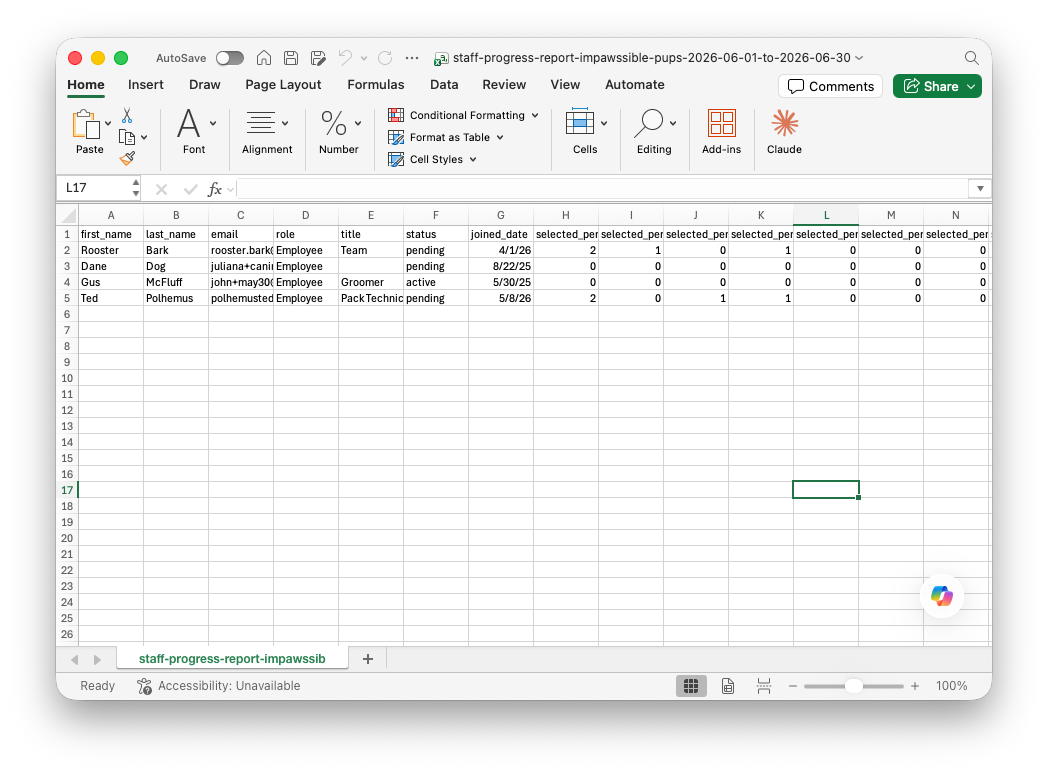
How "Learning Completed" is calculated
Learning Completed is estimated from completed training content within assigned items, courses, and plans, based on each content item's estimated length. It is not a stopwatch of time spent in the app.
A few things to keep in mind:
- Time accrues as a staff member completes content, in proportion to each piece's estimated length.
- The same content isn't double-counted when it appears in more than one assignment — Plans, then Courses, then Items take precedence so each piece of learning is counted once.
- In the app, Learning Completed is shown as hours and minutes (for example, 9h 53m); in the CSV it's reported as whole minutes.
Related actions
- Add Employee — invite a new team member from the My Staff toolbar.
- Add Assignment — assign a Plan, Course, or Item from any staff member's profile.
- Resend / manage invitations — use the actions menu (⋯) at the end of a staff member's row in List view.