.png?width=49&height=50&name=manifest-icon_black-1%20(2).png)
The QuickBooks Online (QBO) integration enables businesses to automatically import financial data from QuickBooks accounts into The Dog Gurus' Insights dashboard. This integration provides secure authentication and flexible account mapping and is only available to users with Owner permissions.
How it works
Connect QuickBooks
To set-up the QuickBooks integration and automatically sync your financial data including revenue, payroll, and profit metrics:
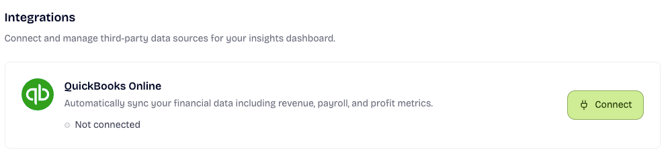
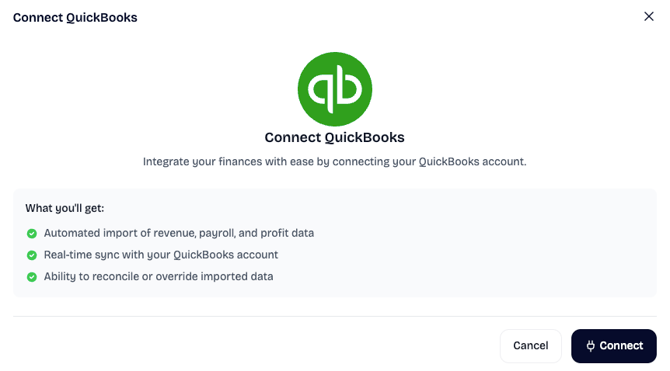
- Visit Settings > Integrations and select Connect
- You will be prompted to log into your QuickBooks account and authorize a data connection.
Map QuickBooks accounts to Insights metrics
Once QuickBooks is linked to The Dog Gurus, you will be prompted to map your QuickBooks accounts from your Chart of Accounts to standardized metrics such as Revenue or Payroll.
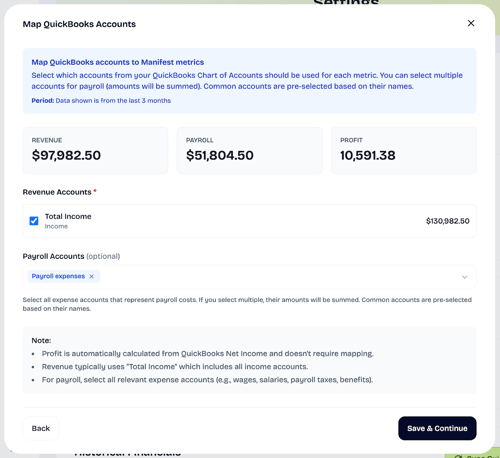
- Revenue: Single selection (typically "Total Income")
- Payroll: Multi-select with autocomplete (select one or more expense categories)
- Profit: Auto-calculated (not directly mapped)
Select import date range
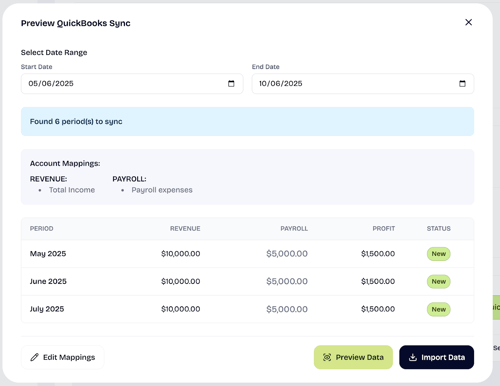
After accounts are mapped, you will have the option to limit the import date range by selecting a Start Date and End Date. After selecting the range, you are required to Preview Data before finalizing the import. After previewing the data, you will have the option to edit mappings, change the import time range, or finalize your data import.
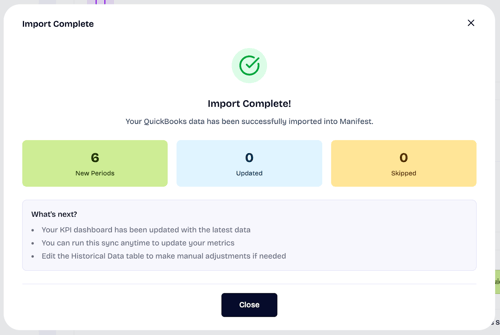
Upon integration completion, you will receive an Import Complete! notification confirming you have successfully imported your account data to The Dog Gurus.
Post-integration
The Dog Gurus will automatically detect when QuickBooks data differs from The Dog Gurus data and prompt you to reconcile differences.

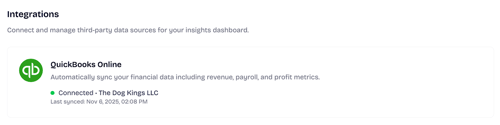
The status of your QuickBooks integration can always be viewed at Settings > Integrations.