.png?width=49&height=50&name=manifest-icon_black-1%20(2).png)
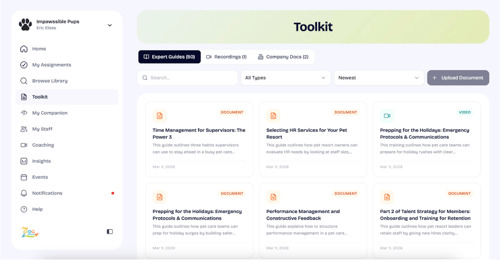
Toolkit allows everyone on your team (owners, managers, and employees) to access Dog Gurus resources and events in addition to your company specific documents. No more hunting through emails or asking where to find information.
From one place, your team can access:
- Expert Guides: Curated articles and how-to content from The Dog Gurus
- Recordings: Past training sessions and video content
- Company Docs: Documents your leadership team has uploaded specifically for your business
How it works
To access Toolkit:
- Log in to the platform.
- Click Toolkit in the left sidebar.
- Use the tabs to browse Expert Guides, Recordings, or Company Docs.
|
💡 Tip: Toolkit is visible to all team members — no extra setup required. If you don't see it in the sidebar, try refreshing or logging out and back in. |
Company Docs
Company Docs is where owners and managers can upload documents specific to your business such as staff handbooks, SOPs, policy updates, or onboarding materials. Employees can then access these from the Toolkit without needing to dig through shared drives or text threads.
Uploading a document
- Go to Toolkit → Company Docs.
- Click Upload Document.
- Select the file from your device and add a title.
- Choose a visibility setting (see below).
- Click Save.
Visibility settings
When uploading or editing a document, you control who can see it:
- Everyone — visible to all team members, including employees
- Managers & Owners — only managers and owners can view this document
- Owners only — private to owners; not visible to managers or employees
|
🔒 Note: Visibility can be updated at any time. If you share a document with Everyone and later restrict it, employees will lose access immediately. |
Editing or deleting a document
Owners and managers can edit the title, replace the file, or update the visibility of any document they have access to.
-
To edit, click the ellipses (...) below the document and select Edit.
-
To delete, click the ellipses (...) below the document and select Delete — this action is permanent and cannot be undone.
Who can do what
|
Feature |
Employees |
Managers |
Owners |
|---|---|---|---|
|
Browse Expert Guides |
✓ |
✓ |
✓ |
|
Browse Recordings |
✓ |
✓ |
✓ |
|
View Company Docs (Everyone) |
✓ |
✓ |
✓ |
|
View Company Docs (Mgrs+) |
— |
✓ |
✓ |
|
View Company Docs (Owners) |
— |
— |
✓ |
|
Upload Company Docs |
— |
✓ |
✓ |
|
Edit Company Docs |
— |
✓ |
✓ |
|
Delete Company Docs |
— |
✓ |
✓ |
AI companion integration
Documents uploaded to Company Docs may also surface directly in your AI Companion. When a team member asks a question, the Companion can reference relevant company documents to provide answers grounded in your business's own materials, not just general guidance.
Visibility settings apply here too. The Companion will only surface a document to team members who have permission to view it. An employee will never see content from a document restricted to Managers & Owners or Owners only.
Frequently asked questions
Can employees upload their own documents?
Not at this time. Only managers and owners can upload, edit, and delete Company Docs. Employees can view documents shared with Everyone.
What file types are supported?
PDFs are recommended for the best viewing experience. Other file types may be supported — contact support if you run into issues with a specific format.
Can I change the visibility of a document after uploading it?
Yes. Edit the document at any time to update its visibility setting. Changes take effect immediately.
What happens to a document when I delete it?
Deleted documents are permanently removed. Anyone who had access will no longer be able to view it. If you want to temporarily restrict access without deleting, update the visibility to Owners only instead.